
Estimates
An estimate is a priced proposal you send to a contact before any money changes hands. It lists what you plan to deliver and what it will cost, and it gives the customer a simple way to review and accept online. Once an estimate is accepted, you can turn it into an invoice and collect payment, without re-entering anything. Estimates live alongside Invoices in the Payments area of your CRM.
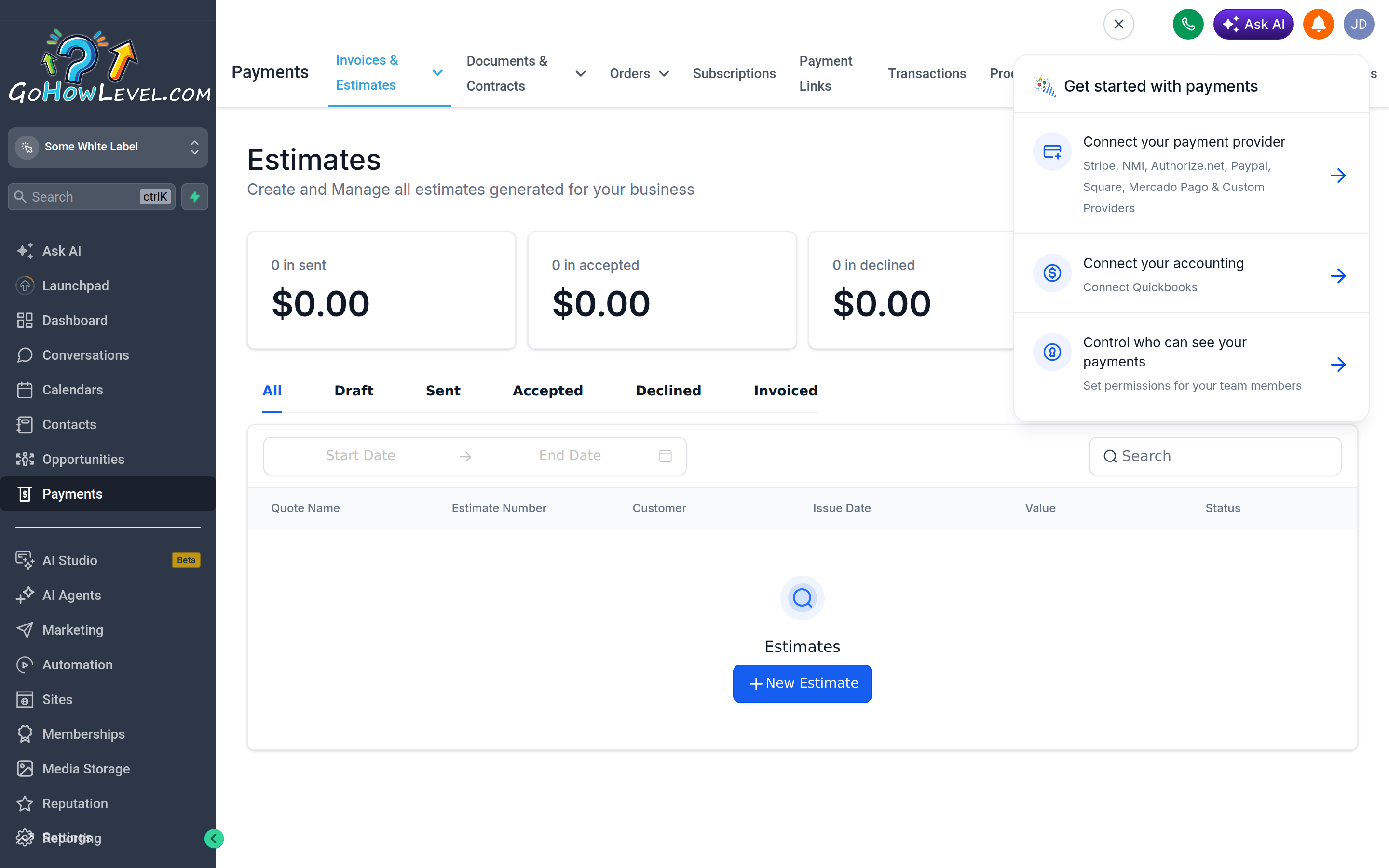
Estimates live alongside invoices in Payments, with statuses from Draft through Invoiced.
What estimates are for
Section titled “What estimates are for”Use an estimate whenever a customer wants to see pricing before committing, such as a quote for a project, a package of services, or a custom order. Because the customer accepts the estimate on record, you get a clear, time-stamped agreement on scope and price that you can later bill against.
Creating an estimate
Section titled “Creating an estimate”- Open the Payments area and go to Estimates.
- Choose to create a new estimate.
- Select the contact the estimate is for, or add a new one.
- Add your line items: each product or service with its quantity and price. You can pull from your saved product catalog or enter items manually.
- Apply any discounts, taxes, or notes the customer should see.
- Review the total, then save the estimate as a draft until you are ready to send.
Sending the estimate
Section titled “Sending the estimate”When the estimate is ready, send it to the contact directly from the estimate. The customer receives a link to view it online. You can usually deliver it by email or text, and you can resend it if the customer needs another copy.
Once sent, the estimate’s status updates as the customer interacts with it, so you always know where things stand.
What the customer sees and does
Section titled “What the customer sees and does”The customer opens the estimate through their link and reviews the line items, pricing, and any notes. From there they can accept the estimate to signal they agree to move forward, or decline it. Acceptance is recorded against the estimate, giving you a clear record that the customer approved the scope and price.
Converting an accepted estimate to an invoice
Section titled “Converting an accepted estimate to an invoice”After an estimate is accepted, you can convert it into an invoice in a couple of clicks. The line items, pricing, and contact carry straight over, so you don’t have to rebuild anything. From there the invoice behaves like any other: send it for payment and collect through your connected payment provider.
Tracking status
Section titled “Tracking status”Each estimate shows its current status so you can follow it from proposal to agreement:
| Status | What it means |
|---|---|
| Draft | Created but not yet sent to the customer |
| Sent | Delivered to the contact and awaiting a response |
| Accepted | The customer agreed to the scope and price |
| Declined | The customer rejected the estimate |
| Invoiced | An accepted estimate that’s been converted to an invoice, which now tracks the billing |
The estimates list filters by these statuses along the top (All, Draft, Sent, Accepted, Declined, Invoiced) and shows columns for Quote Name, Estimate Number, Customer, Issue Date, Value, and Status. Use the status to spot which proposals are waiting on the customer and which are ready to convert.